
Adding Images
If you’d like to add a new image section to your website (where there currently is NOT image), the process is similar:
1. Login
- Scroll to the bottom of your website and click the Design N Rank logo on the bottom left.
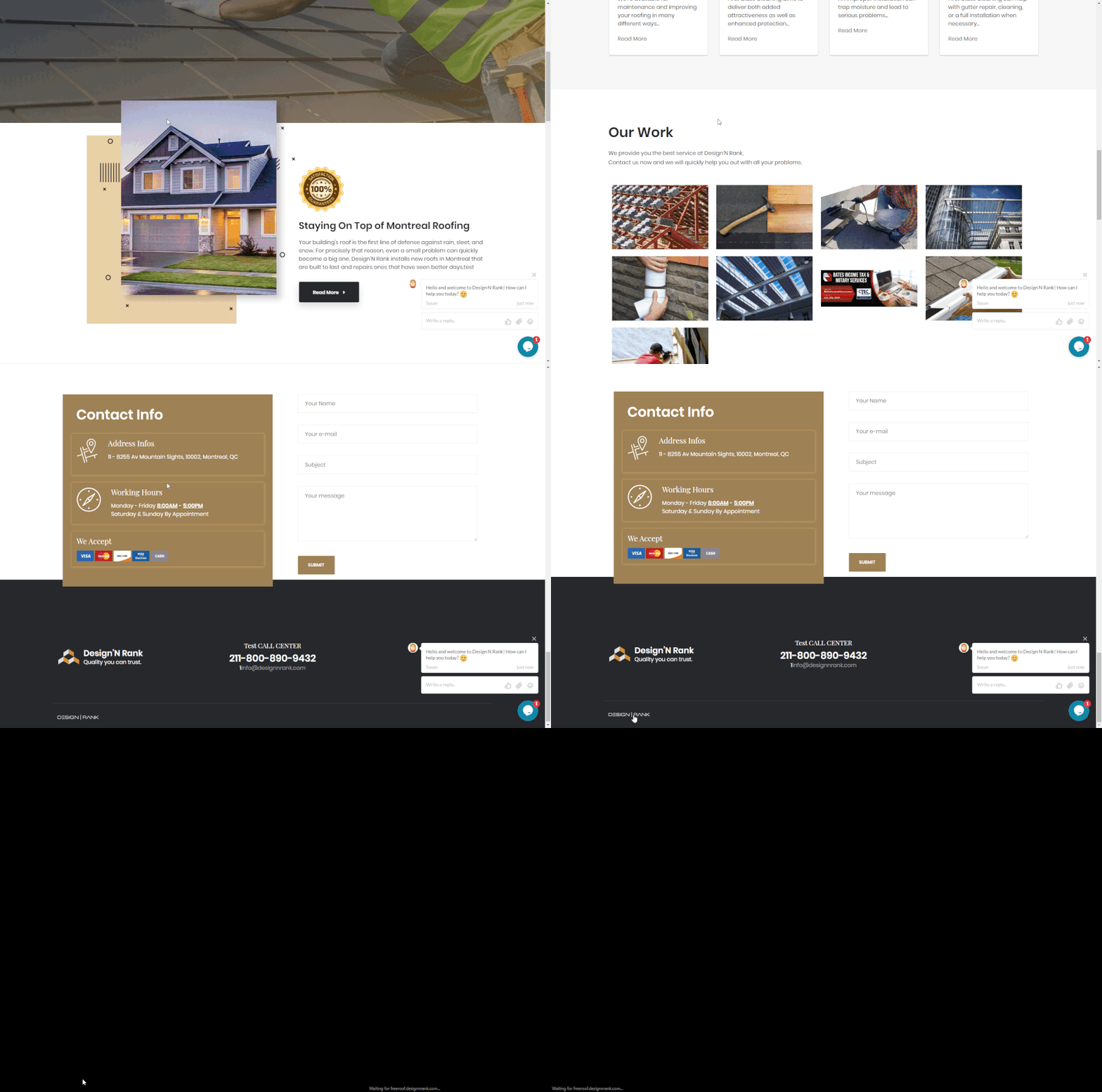
- This will take you to a login page. Enter your password here and click login.

2. Add Your Text
- Drag and drop the image icon that looks like a Polaroid (top center of your website) to the location where you want the image added.
- Click on the “Select image(s) to upload” text and choose an image from your computer. You may also directly drag and drop images from your desktop or other browser tabs.
- You can now move, resize, or crop the image to your desired location and dimensions.

3. Update (Publish) Your Site and Verify Changes
Pro Tip: You can also use the add image function to add icons for social media accounts to your site. Check out how to link these icons to Facebook, Twitter, and more here!