
How To Change or Resize Images page
How to Change Images on Your Website
The images on your website are the first thing your visitors will notice, so they need to stand out. If you’re not happy with the current images, you can replace or resize them in just a few quick clicks.
Here are the individual steps for editing image:
1. Login
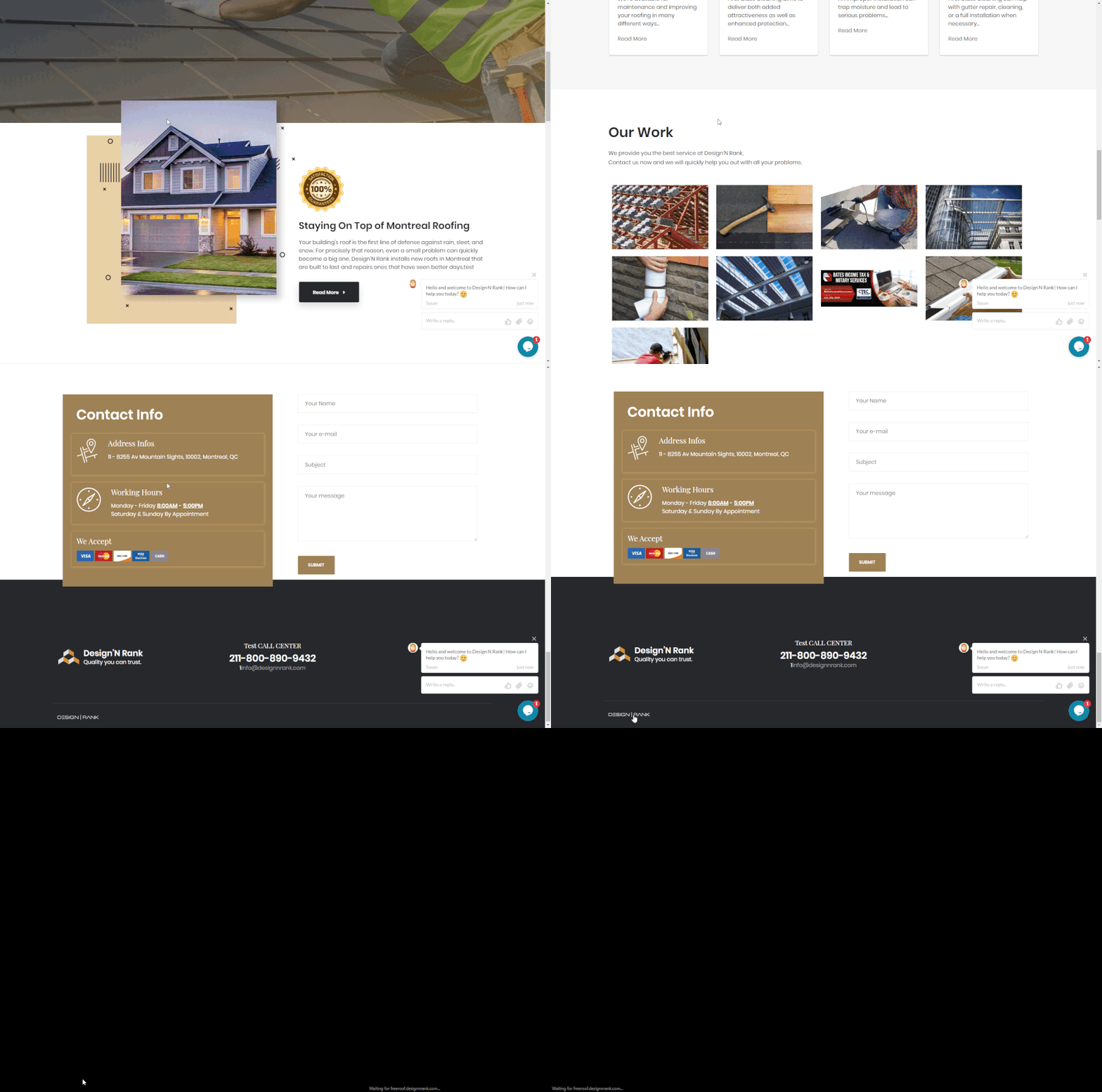
- Scroll to the bottom of your website and click the Design N Rank logo on the bottom left.
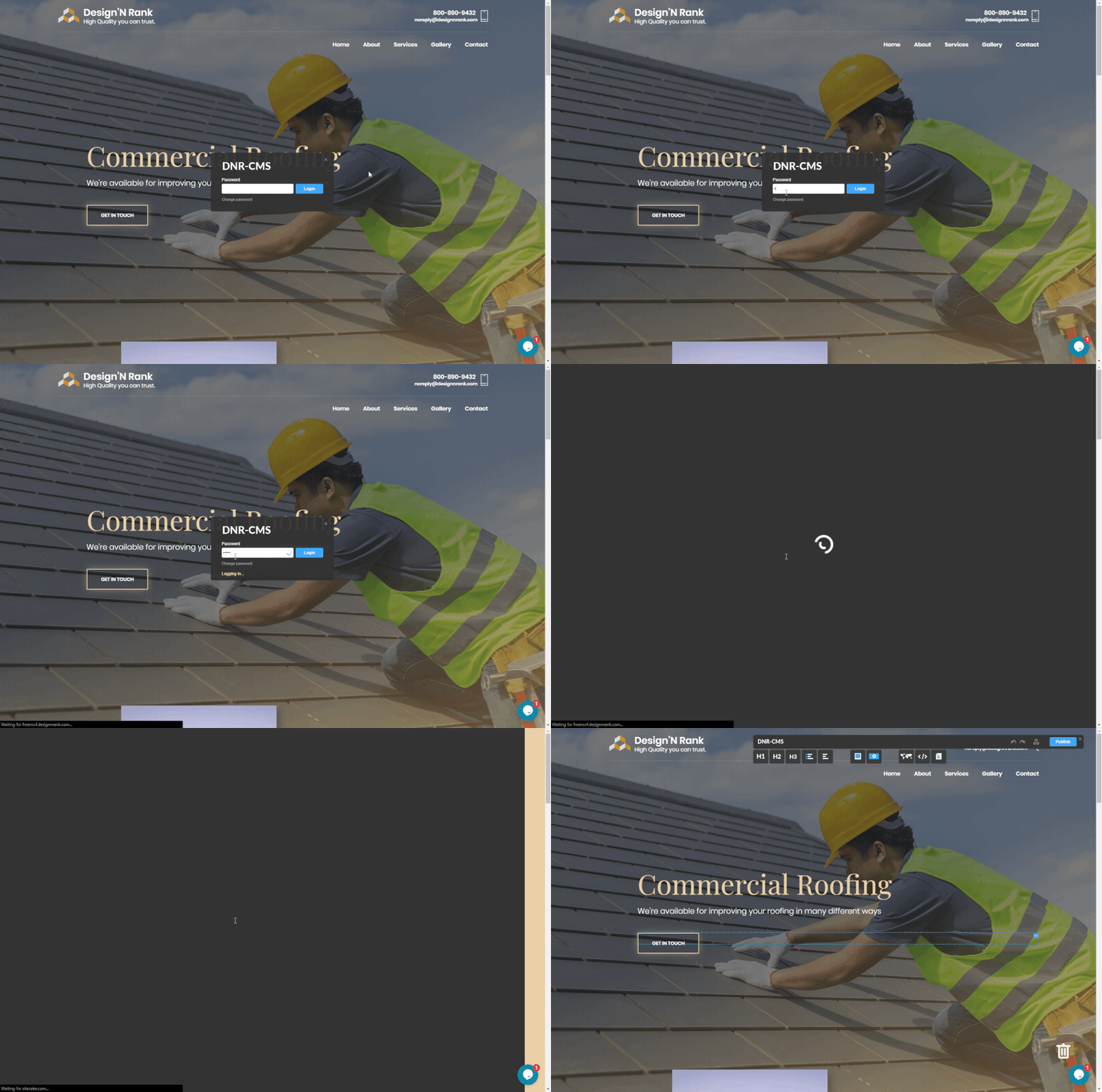
- This will take you to a login page. Enter the password your password and click login.
2. Remove Your Image
- When you hover with your mouse over an image, a blue “X” will appear in the top right corner. Click this “X” to remove the image.
Alter Your Image
- Click on the image once for Resize or twice for Crop (there will be a blue box in the top left corner to indicate which function you’ll use.
- Click and drag one of the small squares on the sides or corners of the image to adjust to your desired size.

3. Update Your Site
- Click the blue “Publish” button in the top right corner of your site.

And lastly, always refresh/reload your site to make sure the new change is there.